Activity area legends
The Legend option on the toolbar, of the Activity Areas tab, controls how activity areas are coloured in the 3D scene. Legends help you interpret the plan visually by applying consistent colour schemes based on attributes such as activity type, pit, mining level, or schedule fields.
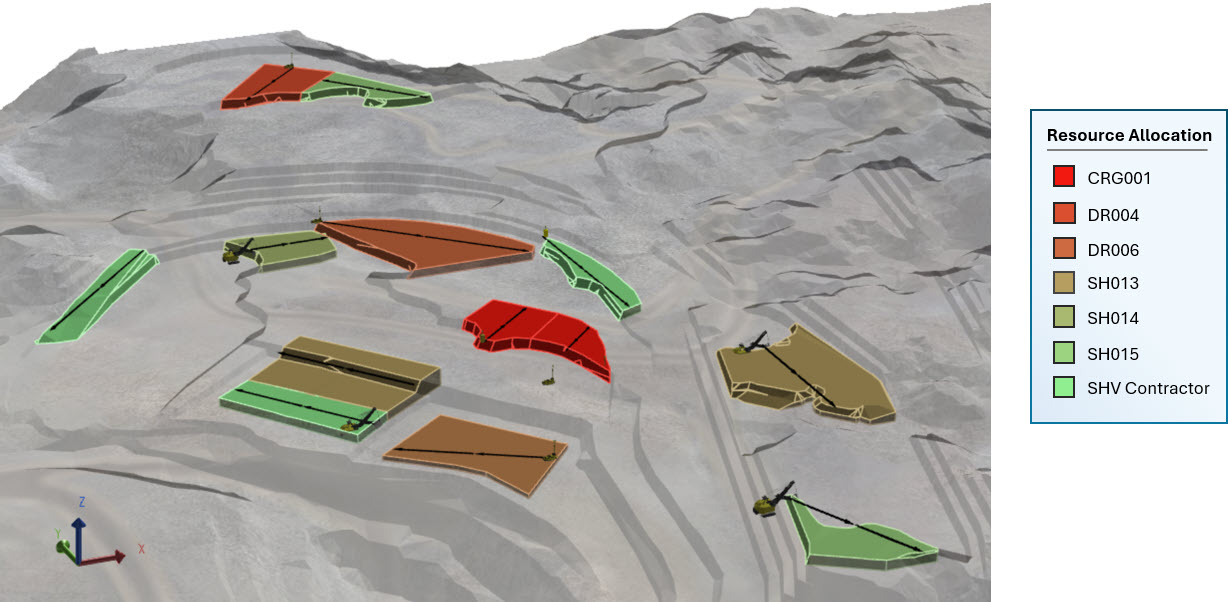
Colouring activity areas by allocation of resources
You can use system-defined legends or create custom legends in Config > System Configuration > Legends.
System-defined legends
|
Legend |
Description |
|---|---|
|
Activity |
Colours each activity area based on its activity type. The colour comes from the activity definition in Config > Activities. |
|
Single Colour |
Applies one colour to all activity areas. You select the colour when you choose this option. Useful for a neutral view. |
|
Colour Range |
Applies a gradient between two colours based on a selected field (see Legend field below). Ideal for visualising numeric or ordered data. |
|
Assigned Resources |
Colours areas based on the resource assigned to them. Each resource gets a unique colour. |
Legend field
When you select Colour Range, you must choose a legend field. This field determines how the gradient is applied. For example, if you select Earliest Start Date, areas scheduled earlier will appear at one end of the gradient, and later areas at the other.
|
Field |
Description |
|---|---|
|
Activity Area |
Colours each area based on its name, within the selected colour range. Each activity area gets a unique colour. |
|
Activity |
Colours each area based on its activity type. Activity areas with the same activity share the same colour. |
|
Pit |
Colours activity areas by their associated pit. |
|
Mining Level |
Colours areas by their assigned mining level (bench). |
|
Reserve Status |
Colours areas based on their reserve status, which indicates whether reserves are successfully evaluated or have errors (e.g., outside pit limits or mining level is above the topography). |
|
Dependency Status |
Colours areas based on whether their dependencies have been successfully calculated (Calculated or Not Calculated). |
|
Import Status |
|
|
Locked |
Colours areas based on their lock state (unlocked/editable or locked/static). |
|
Calculation Mode |
Colour areas by their reserving mode (whether activity area edits are applied instantly or manually). |
|
Resources |
Colours areas based on assigned resources. |
|
Rate Factor |
Colours areas based on their production rate factor override (Resources tab > Rate Factor). |
|
Delay Until |
Colours areas based on their Delay Until date, which means the activity area is delayed or cannot occur (due to dependencies) until the determined date. |
|
Earliest Start |
Colours areas based on the their scheduled start date. |
|
Earliest Start Period |
Colours areas based on the their scheduled start period. |
|
Latest Finish |
Colours areas based on the their scheduled end date. |
|
Latest Finish Period |
Colours areas based on the their scheduled end period. |
|
Total Completed |
Colours areas based on the percentage of work to be completed (Gantt tab > Adjust Allocation). |
|
Total Remaining |
Colours areas based on the remaining percentage of work to be completed (Gantt tab > Adjust Allocation). |
|
Destination Overrides |
Colours areas based on destination overrides (each value indicates a material, associated destination, and percentage allocation). |
|
Dependency Overrides |
Colours areas based on whether they have dependency overrides (Yes/No). |
|
GC Intersections |
Colours areas based on their grade control intersections (values indicate overlapping grade control solids). |
|
[Principal Field] |
Colours areas based on a selected principal field (e.g., Volume, Mass, Plan Area, Avg Thickness, Density). Colours are assigned according to the value distribution. |
Custom legend
You can apply any custom legend.